CNC Router Software for Non-Programmers: A Practical Guide

CNC Router Software for Non-Programmers: A Practical Guide
You're a woodworker, sign maker, or furniture builder—not a software developer. You bought a CNC router to make better work faster, not to learn G-code programming or master complex CAM software that feels like engineering school.
Good news: You don't need programming skills to use a CNC router effectively in 2026.
This guide explains CNC router software options designed for makers, not programmers, and shows you how to go from design to cut without writing a single line of code.
The Programming Myth
Common fear: "I'm not technical enough for CNC"
Reality: Modern CNC software requires zero programming knowledge.
What you DON'T need to learn:
- ❌ G-code syntax
- ❌ Coordinate systems and axis transformations
- ❌ Feed rate mathematical formulas
- ❌ Inverse kinematics
- ❌ CAD programming or scripting
What you DO need to learn:
- ✅ Basic 2D design (similar to drawing)
- ✅ Material properties (you already know wood)
- ✅ Tool selection (similar to choosing hand tools)
- ✅ Workflow steps (design → CAM → cut)
Think of modern CNC software like using a smartphone: You don't need to know how it works internally—you just use it.
The Three Types of CNC Software
1. CAD (Design) Software
What it does: Creates your design (drawings, shapes, logos)
Non-programmer options:
- Inkscape: Free, vector drawing (like simplified Illustrator)
- Easel (Inventables): Web-based, simple interface
- Carbide Create: Free, router-focused design
- SketchUp: 3D modeling for furniture
Programming required: None (all visual drag-and-drop)
Learning time: 5-10 hours for basics
2. CAM (Toolpath) Software
What it does: Converts your design into cutting instructions
Non-programmer options:
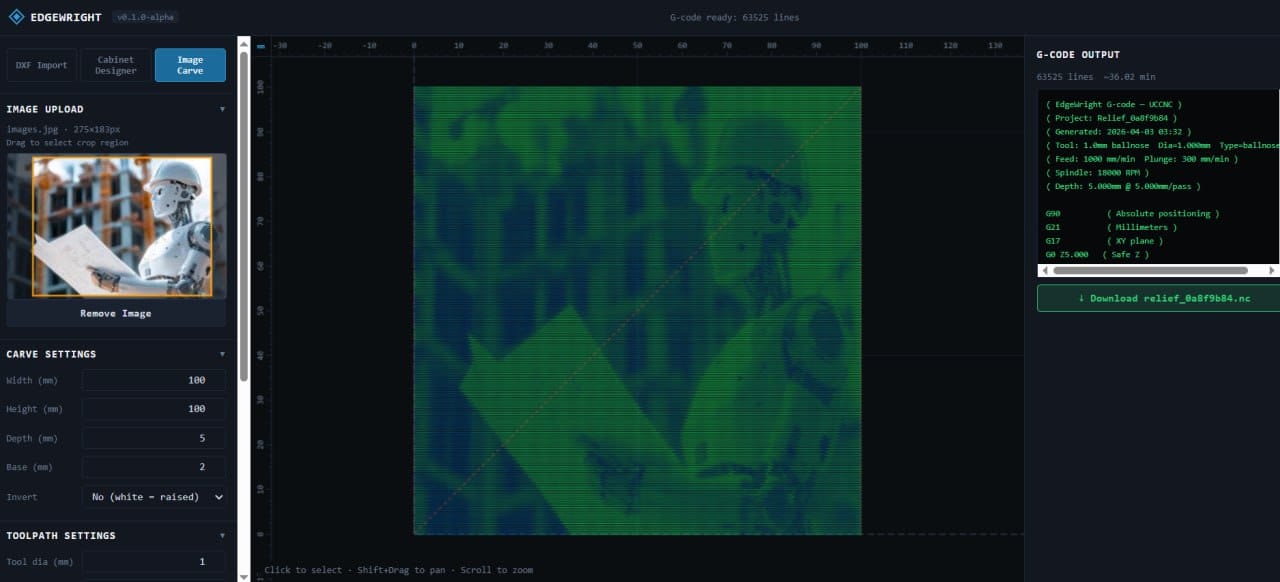
- EdgeWright: AI-powered, natural language commands
- Carbide Create: Free, simple workflow
- Easel: Integrated with CAD
- VCarve: Powerful but steeper learning curve
Programming required: None (describe what you want or click buttons)
Learning time: Traditional CAM = 40-60 hours. AI CAM = 5-10 hours.
3. G-code Sender (Machine Control)
What it does: Sends cutting instructions to your CNC
Non-programmer options:
- gSender (Sienci): Clean interface, built-in help
- Carbide Motion: Simple, integrated workflow
- Easel Driver: Web-based, foolproof
- UGS (Universal Gcode Sender): Free, reliable
Programming required: None (load file, click Start)
Learning time: 1-2 hours
Workflow for Non-Programmers
Traditional (Programming) Workflow
1. Learn G-code syntax
2. Write G-code manually OR
3. Learn complex CAM software (VCarve, Fusion 360)
4. Configure 20+ parameters per toolpath
5. Debug errors
6. Send to machine
Time to proficiency: 100+ hours
Modern (No Programming) Workflow
1. Draw design in visual CAD software
2. Describe cut in plain language OR click operation type
3. AI generates toolpath automatically
4. Preview and adjust
5. Send to machine
Time to proficiency: 10-20 hours
Best Non-Programmer Workflows by Experience Level
Complete Beginner (Never used CNC)
Recommended combo:
- CAD: Easel (Inventables) or Carbide Create
- CAM: Built-in (Easel) or Carbide Create
- Sender: Easel Driver or Carbide Motion
Why this works:
- All-in-one workflows (no software switching)
- Visual interfaces (no code)
- Large beginner communities
- Tons of tutorials
Limitations:
- Basic features only
- Limited to simple projects
- No advanced joinery or parametric design
Best for: Signs, coasters, simple boxes, decorative panels
Time to first successful cut: 2-4 hours
Intermediate (Some CNC experience, ready for more)
Recommended combo:
- CAD: Inkscape or SketchUp (free) OR Illustrator (paid)
- CAM: EdgeWright (AI-powered)
- Sender: gSender, UGS, or controller software
Why this works:
- More design freedom
- AI handles complex CAM (no manual parameter entry)
- Faster than all-in-one beginners tools
- Production-ready features (nesting, multi-operation)
Limitations:
- Need to learn separate CAD tool
- Cloud-based (requires internet for CAM)
Best for: Custom cabinets, furniture, production signs, inlays
Time to proficiency: 10-15 hours
Advanced (Want professional features without programming)
Recommended combo:
- CAD: Fusion 360, Rhino, or FreeCAD
- CAM: EdgeWright (AI) + VCarve (for complex 3D)
- Sender: Machine controller software
Why this works:
- Full design capabilities
- AI speeds up 80% of workflows
- Manual control available when needed
- Professional results
Best for: Complex furniture, 3D carving, production shops
Time to proficiency: 30-40 hours (but productive much sooner with AI)
Real Project Walkthrough (No Programming)
Project: Custom Wooden Sign
Step 1: Design (Inkscape - 15 minutes)
- Open Inkscape (free download)
- Type customer's text: "Welcome Home"
- Choose font (from built-in library)
- Draw border rectangle (rectangle tool)
- Export as SVG file
Programming skills needed: None (visual tools only)
Step 2: CAM (EdgeWright - 2 minutes)
- Upload SVG to EdgeWright
- Type: "V-carve the text on 1/2-inch cedar, profile cut the border with tabs"
- EdgeWright AI:
- Selects 60° V-bit for text
- Sets feeds/speeds for cedar
- Adds 1/4" endmill for profile cut
- Places 4 tabs automatically
- Review 3D preview
- Download G-code
Programming skills needed: None (plain English description)
Step 3: Cutting (gSender - 5 minutes + cutting time)
- Load G-code file into gSender
- Insert V-bit, run text toolpath
- Tool change: Insert 1/4" endmill
- Run profile toolpath
- Remove sign, sand tabs
Programming skills needed: None (click buttons, follow prompts)
Total project time: 22 minutes setup + 20 minutes cutting
Programming knowledge required: Zero
Common Non-Programmer Challenges (Solved)
Challenge 1: "I don't know feeds and speeds"
Old solution: Look up charts, calculate chip load, guess
Modern solution: AI CAM calculates automatically
Example (EdgeWright):
- You: "Cut this from oak"
- AI: Selects 80 IPM feed, 0.125" depth per pass, 20 IPM plunge
- You: Review and accept (or adjust if desired)
No math, no lookup tables, no guessing.
Challenge 2: "I don't understand toolpath types"
Old solution: Read 100-page manual, trial and error
Modern solution: Describe what you want
Examples:
- "Cut this shape out" → Profile toolpath
- "Carve this area 1/4-inch deep" → Pocket toolpath
- "Engrave this logo" → V-carve toolpath
- "Follow this 3D model" → 3D carving toolpath
AI interprets intent, generates appropriate operation.
Challenge 3: "I'm afraid of breaking bits or crashing"
Old solution: Expensive trial and error
Modern solution: AI safety checks + 3D simulation
EdgeWright safety features:
- ⚠️ "That feed rate is too fast for 1/8-inch bit in hardwood. Reduced to 60 IPM."
- ⚠️ "Depth per pass too deep. Using multiple passes to prevent router stall."
- ⚠️ "Adding tabs to prevent part movement during cutting."
3D preview shows:
- Tool movement path
- Material removal
- Potential collisions
- Tab locations
Catch mistakes before cutting.
Challenge 4: "CAM software is overwhelming"
Old CAM (VCarve, Fusion 360):
- 100+ buttons and menus
- Dozens of parameters per toolpath
- Manual everything
AI CAM (EdgeWright):
- Clean, simple interface
- Natural language commands
- AI handles parameters
- Show advanced options only if requested
Compare:
VCarve workflow (manual):
1. Click Toolpaths tab
2. Select Profile toolpath
3. Choose Inside or Outside
4. Select tool from library (20+ options)
5. Set cut depth
6. Set depths tab: Depth per pass
7. Set depths tab: Z safe height
8. Set tab properties: Tab count, height, length
9. Set lead in/out options
10. Generate toolpath
11. Simulate to check for errors
EdgeWright workflow (AI):
1. Type: "Profile cut inside with tabs"
2. Review preview
3. Done
12 steps reduced to 1 sentence.
Challenge 5: "I don't know which tools to use"
Old solution: Buy expensive starter sets, guess which to use
Modern solution: AI recommends tools based on job
EdgeWright tool guidance:
- Job: V-carve sign → "Use 60° V-bit for sharp details"
- Job: Cut plywood → "Use compression bit to prevent tear-out on top and bottom"
- Job: 3D carving → "Use 1/4" endmill for roughing, 1/8" ball nose for finishing"
AI matches tools to tasks automatically.
Non-Programmer Success Stories
Sarah: Sign Maker (No Tech Background)
Background: Painted signs by hand for 10 years, bought CNC to scale business
Challenge: "I can barely use Excel. CNC seemed impossible."
Solution: Easel for 6 months (learning basics), then EdgeWright for AI efficiency
Result:
- First successful cut: Day 3 (simple text sign)
- Profitable production: Month 2
- 5× revenue increase: Year 1
Quote: "If I can do this with zero tech skills, anyone can. AI made it click for me."
Tom: Furniture Maker (Hates Computers)
Background: 30 years hand tool woodworking, reluctant to use CNC
Challenge: "I'm a Luddite. I build with chisels and hand planes."
Solution: EdgeWright's natural language interface felt like talking to a person, not programming
Result:
- Learned drawer box toolpaths: 1 hour
- Created first dovetail drawer: Same day
- Now uses CNC for joinery, hand tools for finishing
Quote: "I still hate computers, but EdgeWright doesn't feel like one. I describe what I need, it does the math."
Mike: High School Shop Teacher (Not a Machinist)
Background: Teaches woodworking, bought CNC for students
Challenge: "I'm not qualified to teach CNC programming."
Solution: AI CAM lets students learn CNC concepts without coding
Result:
- Students complete 3× more projects per semester
- 90%+ successful first cuts (vs 60% with traditional CAM)
- Students focus on design and craft, not software
Quote: "AI removed the programming barrier. Now it's just another tool in the shop."
Software Decision Tree for Non-Programmers
If you value simplicity above all else:
→ Easel (all-in-one, web-based, extremely beginner-friendly)
If you want free with decent power:
→ Carbide Create + Carbide Motion (free, solid features, large community)
If you want AI assistance and modern features:
→ EdgeWright (AI-powered, web-based, fastest learning curve for advanced features)
If you're willing to invest time for maximum power:
→ VCarve Desktop (industry standard, no AI, steeper learning but very capable)
If you need 3D modeling integrated:
→ Fusion 360 (CAD + CAM in one, free for hobbyists, complex but powerful)
Learning Path (No Programming Required)
Month 1: Basics
Goal: Cut simple 2D projects successfully
Tasks:
- Learn 2D CAD (Inkscape or Easel)
- Create profile cuts (signs, coasters)
- Understand tabs and holding
- Practice tool changes
Projects: Text signs, simple cutouts, coasters
Time investment: 10-15 hours
Month 2: Expansion
Goal: Pockets, V-carving, basic joinery
Tasks:
- Create pocket toolpaths (trays, recesses)
- V-carve logos and decorative elements
- Simple joinery (dados, rabbets)
- Material exploration (hardwood, plywood, acrylic)
Projects: Decorative trays, V-carved signs, simple boxes
Time investment: 15-20 hours
Month 3: Advanced
Goal: 3D carving, complex joinery, production efficiency
Tasks:
- Import and carve STL files (3D reliefs)
- Advanced joinery (dovetails, finger joints)
- Multi-operation projects
- Nesting and batch production
Projects: 3D carved panels, drawer boxes, production runs
Time investment: 20-25 hours
Month 4+: Mastery
Goal: Custom workflows, optimization, teaching others
Tasks:
- Develop shop-specific templates
- Optimize for speed and material savings
- Experiment with advanced techniques
Projects: Custom furniture, client work, creative exploration
By month 4, most non-programmers are fully productive.
Avoiding Programming Rabbit Holes
You might encounter advice to:
- Learn G-code editing
- Master Fusion 360 CAM (designed for machinists)
- Write post-processor scripts
- Compile custom firmware
Reality check: 95% of CNC router users never need these skills.
Focus on:
- Design skills (this IS valuable)
- Material knowledge (this IS critical)
- Tool selection (this matters)
- Workflow efficiency (this saves time)
Skip the programming unless you enjoy it as a hobby.
Final Encouragement
If you can use a smartphone, you can use a CNC router.
Modern CNC software is designed for makers, not engineers. AI has removed the programming barrier. Visual interfaces have replaced code editors.
You don't need to be technical—you need to be willing to learn.
The hardest part is starting. Once you cut your first successful project, confidence builds fast.
Ready to Start (No Programming Required)?
- Natural language toolpath generation (describe what you want)
- AI handles all technical parameters
- Built for woodworkers, not programmers
Join thousands of non-programmers successfully using CNC routers.
[ai/signup)
EdgeWright — CNC router software for makers, not programmers. AI-powered CAM that speaks your language.